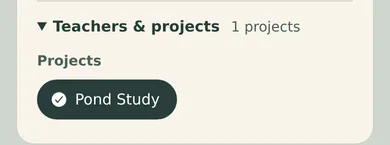
A project keeps a unit study, science fair, or other bigger goal in one place, so you can see every activity that belongs to it. Projects are included with HomeTrail Free.
Start a project
- Open Home on the HomeTrail website, including in a phone browser.
- Select Projects.
- Select New project.
- Choose the Students working on it.
- Add a Name and, if you like, a Description.
- Add Starts and Ends dates, or leave them empty for an open-ended project.
- Select Save project.
Edit or finish a project
- Open Home and select Projects.
- Select Edit beside the project.
- Change its students, name, description, or dates.
- Check Completed when you finish the project.
- Select Save project.
Delete a project
You can delete a project that has no activities in it, such as one you made by mistake.
- Open Home and select Projects.
- Select Edit beside the project.
- Choose Delete project and confirm.
If the project has learning saved in it, check Completed instead so it shows as done in your project list.
Add learning to a project
- Open an activity on Day or in Planner, or add a new one.
- Under Extra details, choose the project in Projects.
- Save the activity.
The project shows how many activities you have recorded for it.
In the HomeTrail app
Start a project
- Open Home, tap Family, then tap Projects.
- Tap Create New Project.
- Tap Select Student(s), choose the children, and tap Okay.
- Add a name and, if you like, a description.
- Tap Save.
To edit or delete a project, add start and end dates, or check Completed, use the website.
Add learning to a project
- Open an activity on Day or in Planner, or add a new one. For an existing activity, tap Edit.
- Tap Teachers & projects and choose the project under Projects.
- Tap Save activity or Save changes.