HomeTrail Plus can turn an original scene into one portrait coloring page for a student. The student can color it with a finger or stylus in Nest, or you can print the clean line art on a dedicated full Letter page.
Create a coloring page in HomeTrail
- Choose Create in the HomeTrail header and pick Coloring Page.
- In Scene or Theme, describe one original subject or action, such as “Friendly dinosaurs exploring space” or “A fox reading beside a mushroom house.”
- Choose a Detail Level:
- Simple for large spaces and bold lines
- Balanced for a clear scene with a few supporting details
- Detailed for smaller spaces and more scene elements
- Start it, then review the preview in Review & finish.
- Choose the children and day, then select Prepare their copies. On each child's card, open the page on the web, Add to plan, or Send to Nest. Preparing does not add it to the plan or Nest; sending to Nest also adds it to the plan. For paper only, choose Print material under Print a copy; no child selection is needed.
HomeTrail creates one page for each request. Generated images can contain unexpected details, so a parent should review every finished page before a student uses it.
Ask TrailGuide to create it
Name the student, scene, and detail level in one message. For example:
Make Avery a simple coloring page of friendly dinosaurs exploring space for today.
TrailGuide queues the pack and sends the finished preview when it is ready. If the result is not a good fit, ask for a new page with a clearer scene or a different detail level.
Color the page in Nest
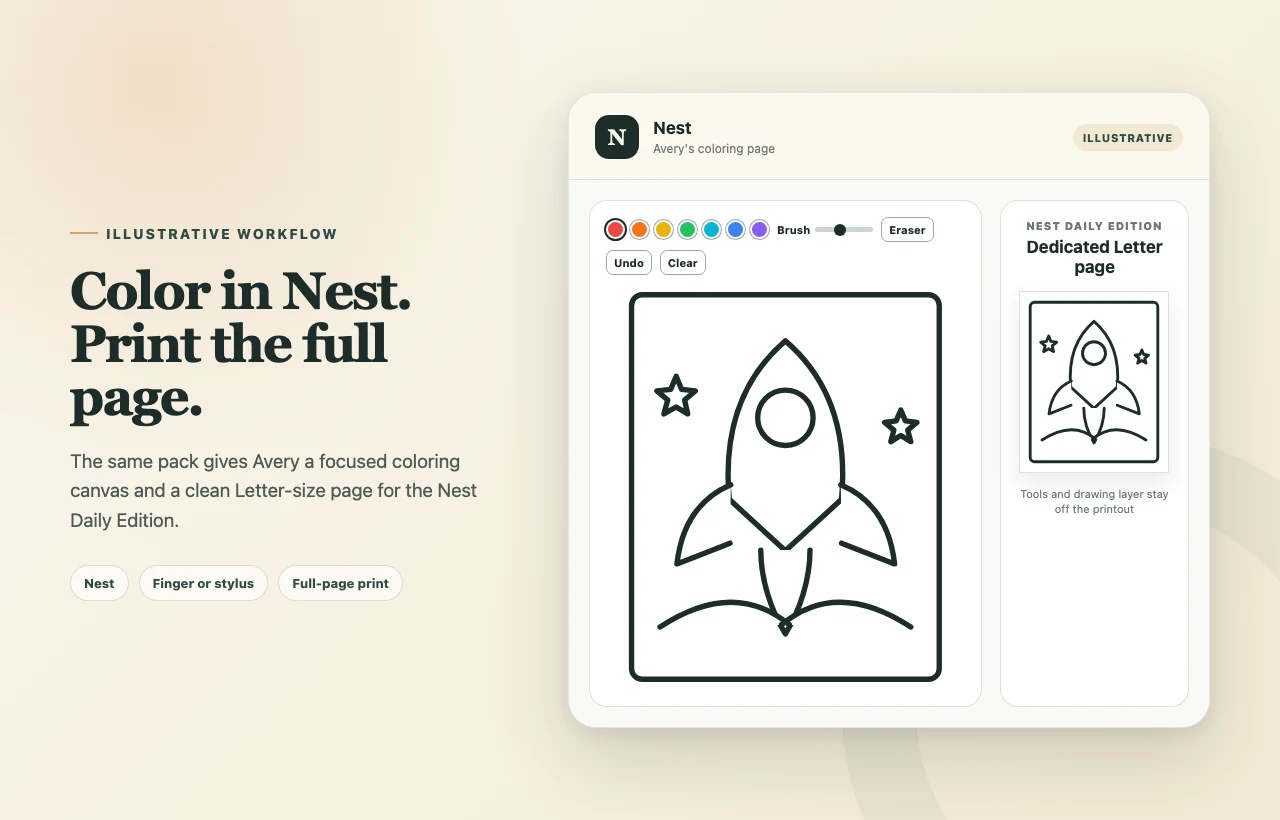
Open the Coloring Page card in the student's Nest. The coloring toolbar includes:
- A color palette
- A brush-size control
- Eraser
- Undo
- Clear
The student can draw directly over the generated page with a finger or stylus. Clear removes the student's current marks from the canvas, so use it carefully.
Print it as a full page
- Ask TrailGuide to build a Nest Daily Edition, for example: “Print Avery's Nest for today.”
- Open the private edition link.
- Review the included activities and choose Print today's Nest.
Each printable Coloring Page pack receives its own US Letter page. HomeTrail hides the coloring toolbar and the student's on-screen drawing layer, then scales the original line art to the available paper area without cropping it. Printer margins can still leave a small white edge around the artwork.
For all Daily Edition options, see Printing a Nest Daily Edition.
Choose safe, original themes
The scene description is sent for AI image generation. Do not include a child's full name, address, health information, or other private personal details.
HomeTrail is designed to create original, generic scenes. Requests for protected franchise characters, brand mascots, celebrities, or a living artist's style are reinterpreted as a new generic scene instead of copying the recognizable design.
If the page is not ready or visible
- Generation failed: Try again later or use a shorter, more concrete scene description.
- The page looks too busy: Create another page with Simple detail.
- The page is different from a named character: Use an original description instead; protected designs are not reproduced.
- The student cannot find the card: Check the selected student and visible date in Plus Hub → Nest, and confirm Nest access is enabled for that student.
- You need to remove an old page: Follow Managing Generated Pack Cards in Nest to archive or restore the card.