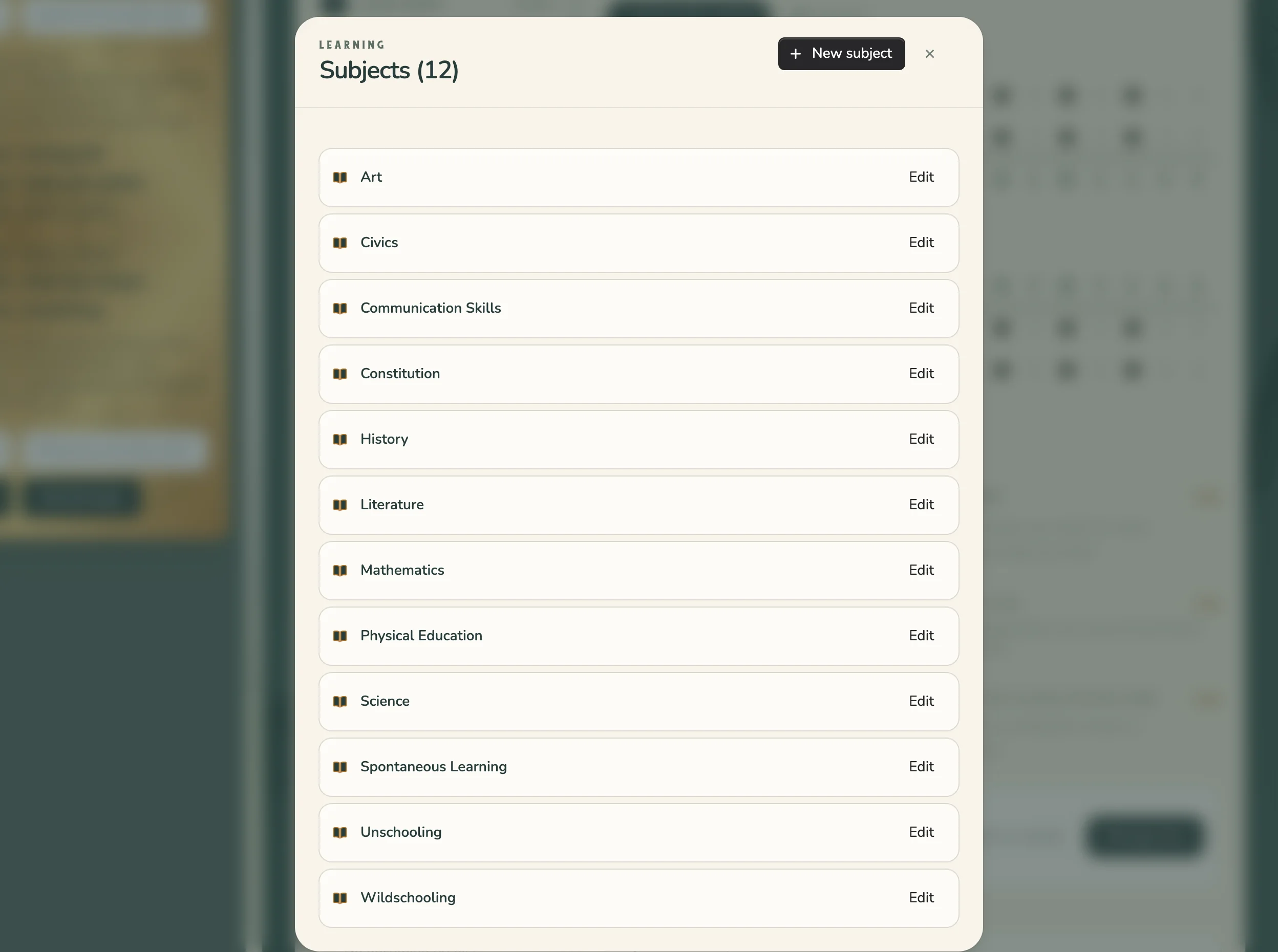
Subjects are the labels you use for learning, like Math, Reading, or Nature Study. Use your family’s own words. HomeTrail uses your subjects to add up time and build your reports.
Add, rename, or delete a subject
- Open Home.
- Choose Subjects in the column under your family name. On a phone, open any activity in Your family rhythm and choose Edit subjects instead.
- To add one, choose New subject, type a name, and select Save subject.
- To rename one, choose Edit beside it, change the name, and select Save subject.
- To delete one, choose Edit, then Delete, and confirm.
Renaming a subject changes it everywhere, including on past activities. Deleting a subject only removes the label. Your activities and learning records stay saved.
Change the subject on a Rhythm activity
- Open Home and find Your family rhythm.
- Select the activity.
- Under What subject is this for?, choose the subjects you want. Select a subject again to remove it.
- Choose Save to my rhythm.
The change applies every time that activity shows up.
Change the subject on one activity
- Open Planner or Day and select the activity.
- Under What will it cover? (or What did it cover? for finished learning), choose the subjects.
- Select Save changes.
You can also choose Manage subjects there to add or rename subjects without leaving the activity.