Your Rhythm is the set of activities that repeat each week, like math every weekday. Here's how to adjust a single day, keep track of lesson numbers, change the order, and print it all.
Add notes or a lesson number for one day
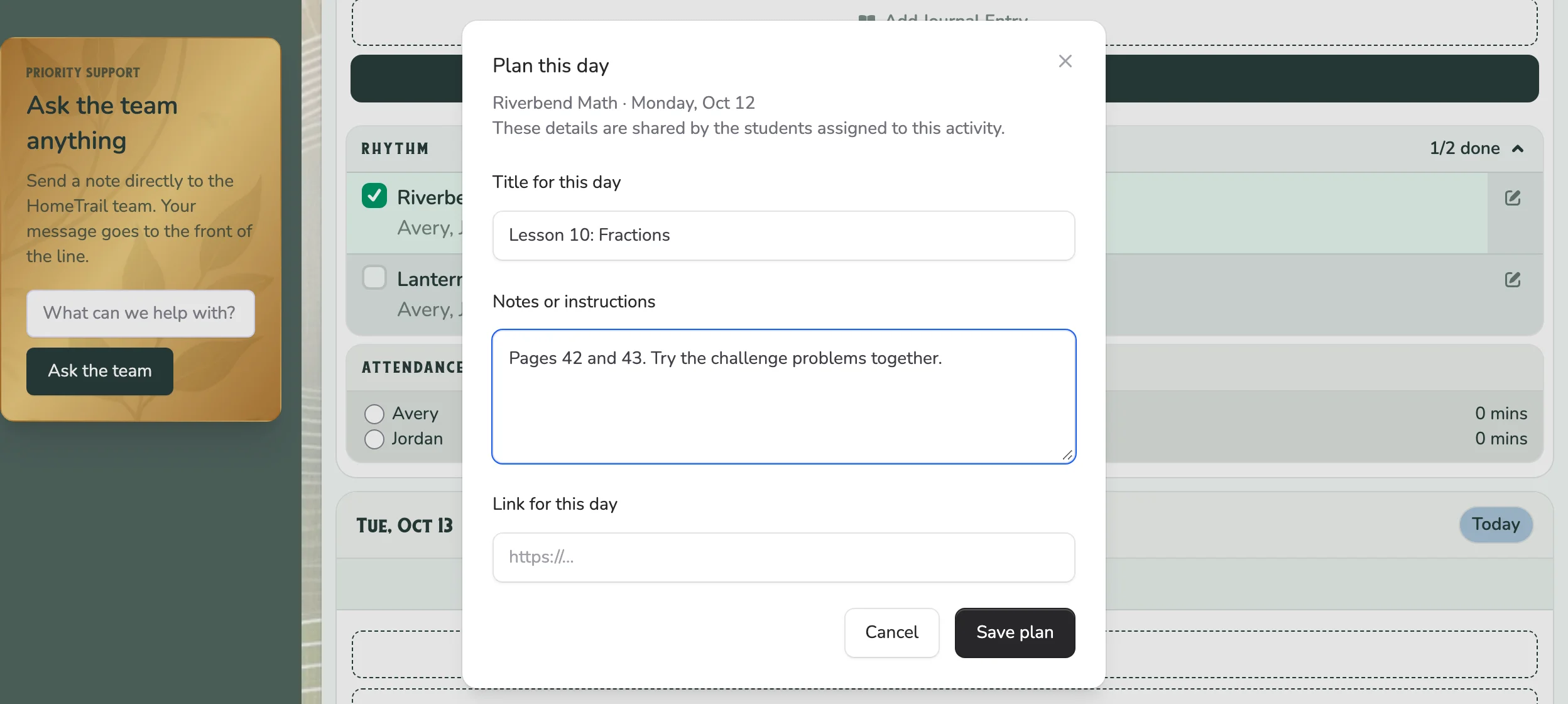
With HomeTrail Plus, you can give one day of a Rhythm activity its own title, notes, and link. It's a handy way to keep track of lesson numbers.
- Open Day, or open the Planner in Week or Month view.
- Find the activity on the day you want and select the pencil (Plan day).
- Fill in Title for this day (for example, “Lesson 10: Fractions”), Notes or instructions, or Link for this day.
- Select Save plan.
Your notes show on that day only. The activity keeps its usual name and schedule on every other day. Every child assigned to the activity sees the same plan for that day.
On the free plan, you can add notes once the learning is done. Open Day, check off the activity, choose Details, add a note, and select Save changes.
Skip or move one day
A Rhythm activity shows up on every day it's scheduled. You can't remove or move just one of those days.
- Skipping a day? Leave the activity unchecked. Unchecked activities don't count as learning, so they don't change your records.
- Doing it on a different day? Add a one-time activity in the Planner on the day you'll do it.
- Changing the days for good? Open Home → Your family rhythm, select the activity, change the days under When does it repeat?, and choose Save to my rhythm.
Change the order of your Rhythm
- Open Home and find Your family rhythm.
- Choose Reorder under your list.
- Drag each activity by its handle, or use the arrows to move it up or down.
Day, the Planner, and your printed calendar all follow this order.
Print your Rhythm on a calendar
- Open Planner and switch to Month.
- Open Actions and choose Print.
- Pick your dates, people, and layout, then select Print calendar.
The printed calendar includes your Rhythm activities, in your Rhythm order. See Print a Family Calendar from the HomeTrail Planner for all the options.